
Description
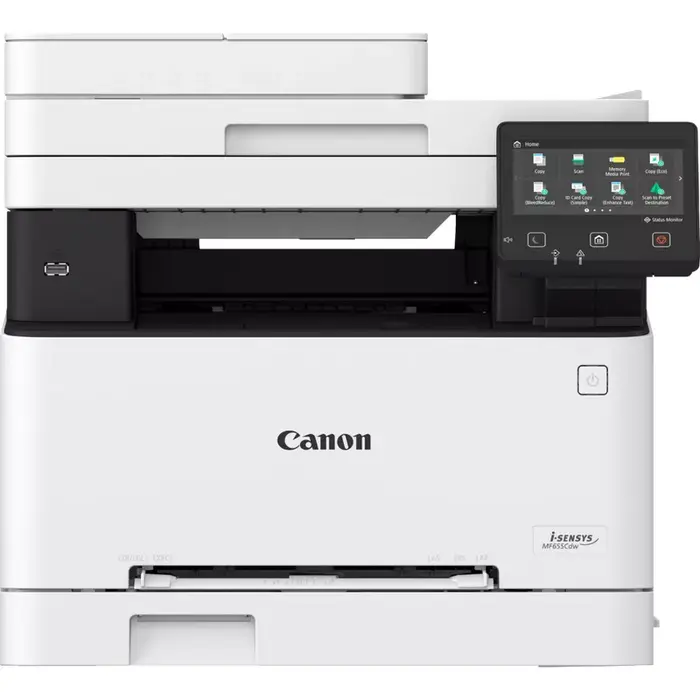
The Canon i-SENSYS MF655Cdw is a multifunction laser printer designed for small to medium offices that require reliable colour printing, scanning and copying. Delivering up to 21 pages per minute and a maximum print resolution of 1200 x 1200 dpi, it produces sharp text and vibrant colour output. The device supports automatic duplex printing and copying, and offers wired and wireless connectivity for flexible placement and mobile printing.
Advantages
The MF655Cdw combines laser print quality with multifunction capability in a compact footprint. It provides duplex printing and copying to reduce paper usage, and both Wi‑Fi and Ethernet connections for seamless integration into existing networks. A monthly maximum duty cycle rated up to 30,000 pages supports higher volume needs, while colour scanning and 600 x 600 optical resolution allow accurate digitisation of documents.
Suitable for
- Small and medium office departments requiring colour documents
- Teams that need duplex printing and copying to save paper
- Workflows that rely on network and mobile printing via Wi‑Fi or Ethernet
- Document digitisation and archiving with colour scanning
Key specifications
- Print technology: Laser colour printing
- Print speed (A4, normal): 21 ppm
- Maximum print resolution: 1200 x 1200 dpi
- Copying: Colour copying with maximum copy resolution 600 x 600
- Scanning: Colour scanning with optical resolution 600 x 600
- Automatic duplex: Print and copy duplex functions supported
- Connectivity: Wi‑Fi and Ethernet LAN
- Maximum ISO A-series paper size: A4
- Maximum duty cycle: Up to 30,000 pages per month
- Product colours available: Black, White
- Weight: 22.6 kg
How to use
Install the printer on a stable surface and connect it to power. Use the setup wizard on the device screen or Canon’s supplied software to connect the MF655Cdw to your network via Ethernet or Wi‑Fi. Load A4 paper or the supported media into the input tray, and select duplex printing or colour options from the print driver when sending documents from a computer or mobile device. For scanning, use the control panel or Canon scanning software to select scan settings and a destination (email, network folder or local PC).
Usage recommendations
To maintain consistent print quality and reliable operation, use appropriate Canon toner and imaging supplies, keep firmware up to date, and store paper in a dry environment. For optimal results with colour documents, select the 1200 x 1200 dpi setting when high-detail output is required and enable duplex only when double-sided originals are needed to avoid unnecessary handling.
There are no reviews yet.